Chart of Accounts
Learn more about how the fiscal chart of accounts is created and utilized in Xena.
In Xena, you can post and invoice without having to create the entire chart of accounts beforehand. The chart of accounts is formed gradually as you use the system.
How the Chart of Accounts Works
The chart of accounts is partially generated automatically based on the article groups and VAT codes you create. Xena correctly assigns accounts for revenue, purchases, stock, VAT, customer and supplier ledger accounts, and equity to the main accounting groups – these cannot be changed.
The only accounts you need to create manually are the ledger accounts you want to post directly to. You can do this in three ways:
- Select from one of the default charts of accounts provided in Xena
- Create new accounts progressively during posting
- Import your previous chart of accounts via the archive
➡️ Read more in the guide on Xena's archive function
Article Group Accounts
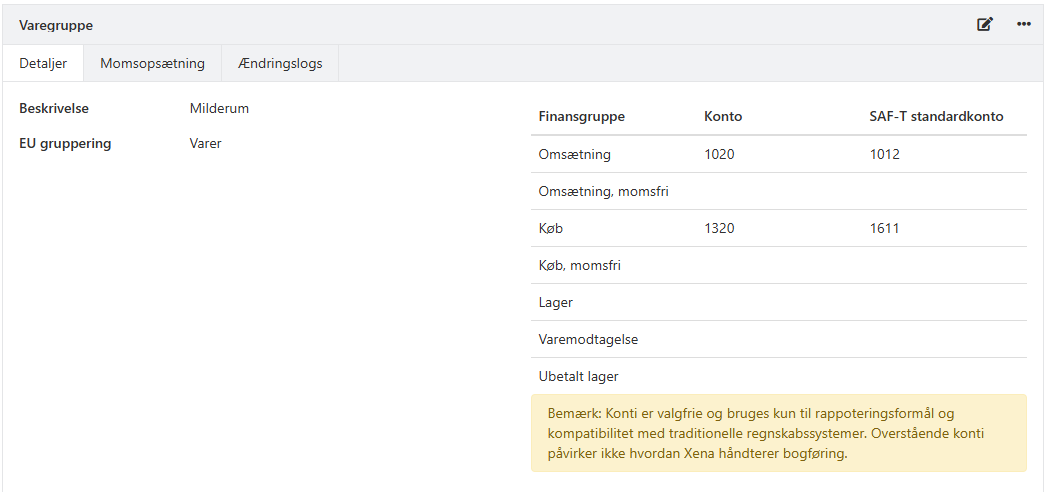
When you create an account under e.g., Net Revenue, an article group is also created automatically, which contains linked accounts such as:
- Net revenue without VAT
- Product consumption
- Product consumption without VAT
- Stock
- etc.
In voucher posting and the cash journal, you will only see article group accounts that have either an account number or a SAF-T account number assigned.
If you want to post stock manually, you must instead create ledger accounts under Assets in the main group Manual Stock. Accounts in the main group Stock can only be posted via article numbers with stock management enabled.
➡️ Read more about how article groups work in Xena
Accounts for VAT
When creating a new VAT account, you choose whether it is for automatic or manual VAT posting.
➡️ Read more in the VAT Codes guide
Standard Chart of Accounts
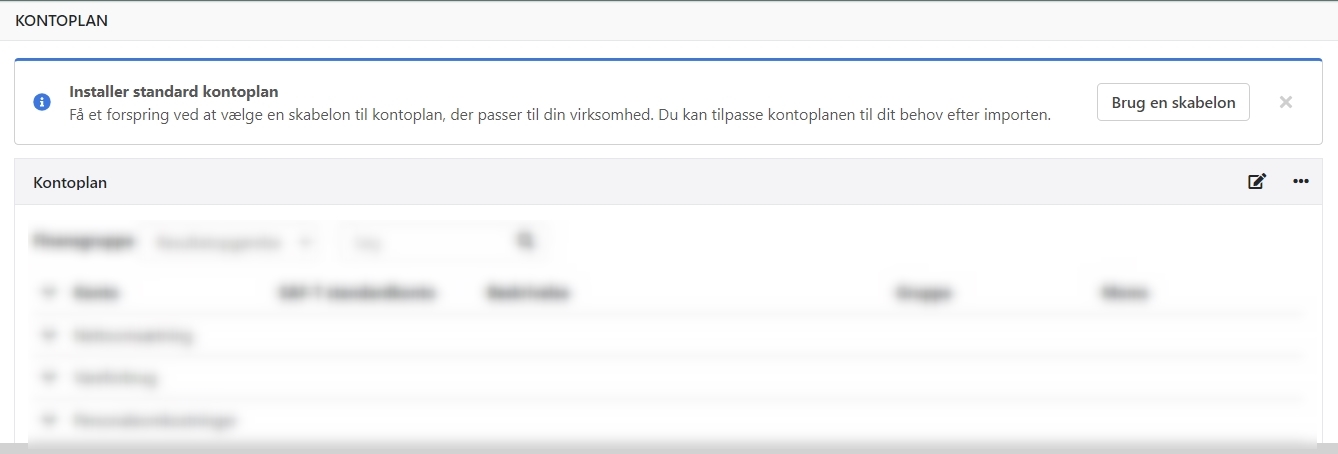
When creating a new accounting file, you can install a standard chart of accounts to get started quickly.
- Go to Ledger > Account Overview > Account Overview
- Click Use a template
- Choose the chart of accounts that matches your company type
- Click Install
After installation, review the chart of accounts and make sure VAT codes are added to the relevant accounts.
Public Standard Chart of Accounts
If you choose to install the public standard chart of accounts, you must rename account numbers for the accounts automatically created in all accounting files.
Income Statement
- System Difference = 2720
- Financial Items = 3490
- Exchange Rate Difference = 3610
Assets
- Accounts Receivable = 6190
- Cash = 6470
- Bank = 6480
Liabilities
- Equity = 6510
- Accounts Payable = 7440
VAT Liabilities
- Outgoing VAT 25% = 7680
- Incoming VAT 25% = 7740
- EU VAT, goods 25% = 7700
- EU VAT, services 25% (reverse charge) = 7720
- Manual import VAT = 7700-1
- Oil and bottled gas duty = 7760
- Electricity duty = 7780
- Natural gas and city gas duty = 7800
- Water duty = 7820
- VAT Liability = 7840
➡️ Here is the public chart of accounts

Create/Edit Ledger Account
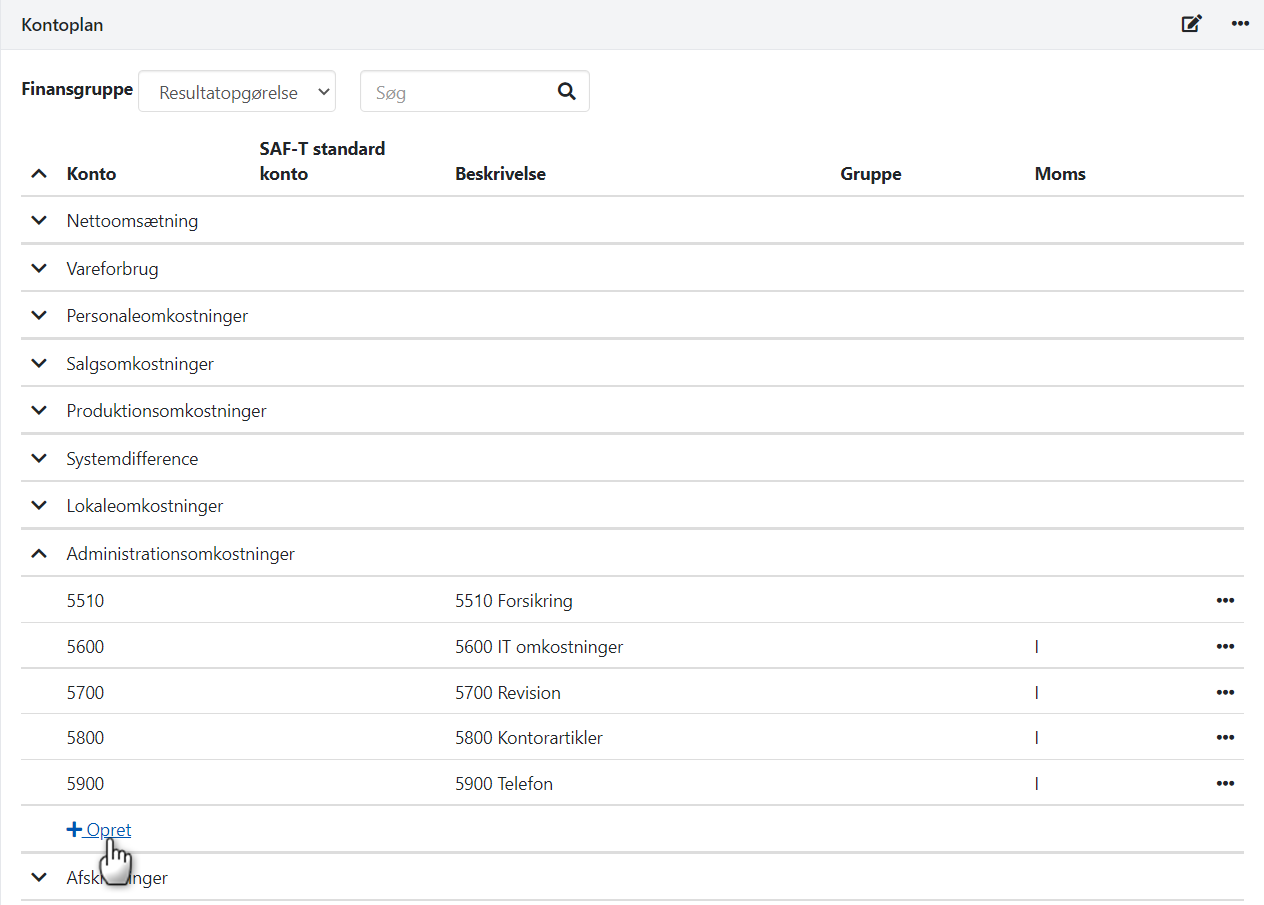
To create or edit an account, go to Ledger > Account Overview > Account Overview.
- To create: Click Create to add a new account
- To edit: Click the menu icon (three dots) next to an existing account and select Go to ledger account
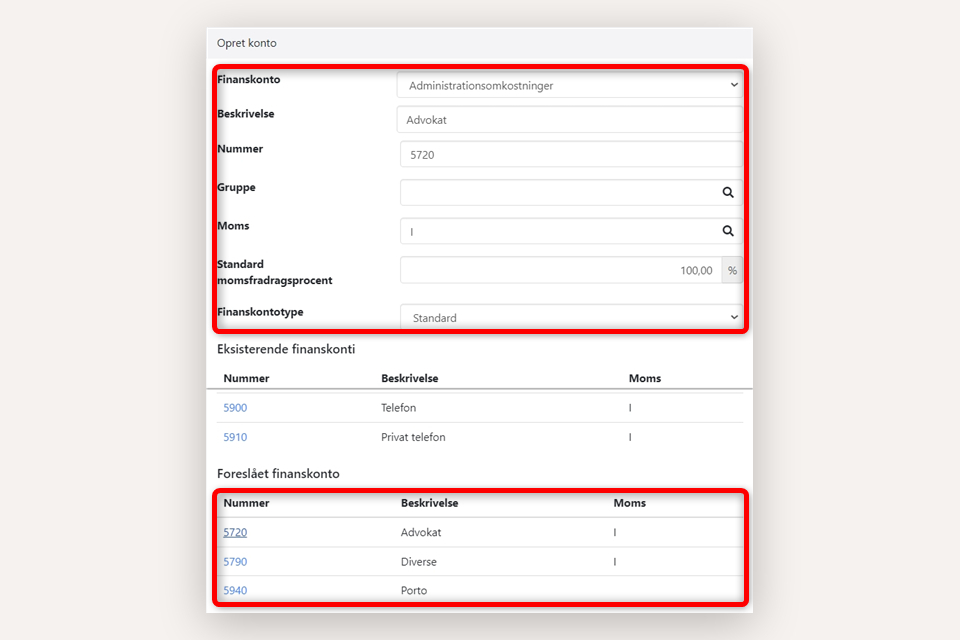
In the dialog, you can enter the account number, name, and other information manually, or select a suggestion under Proposed Ledger Account. All fields can be changed.
Main Fields
- Group: Used to divide main groups
- VAT: Select default VAT code (can be overridden when posting)
- Default VAT deduction: Usually 100%
- Ledger Account Type: Usually Standard, but can also be:
- Settlement: Used as a contra account in cash journal and voucher posting
- Differences: Used as a difference account for payments
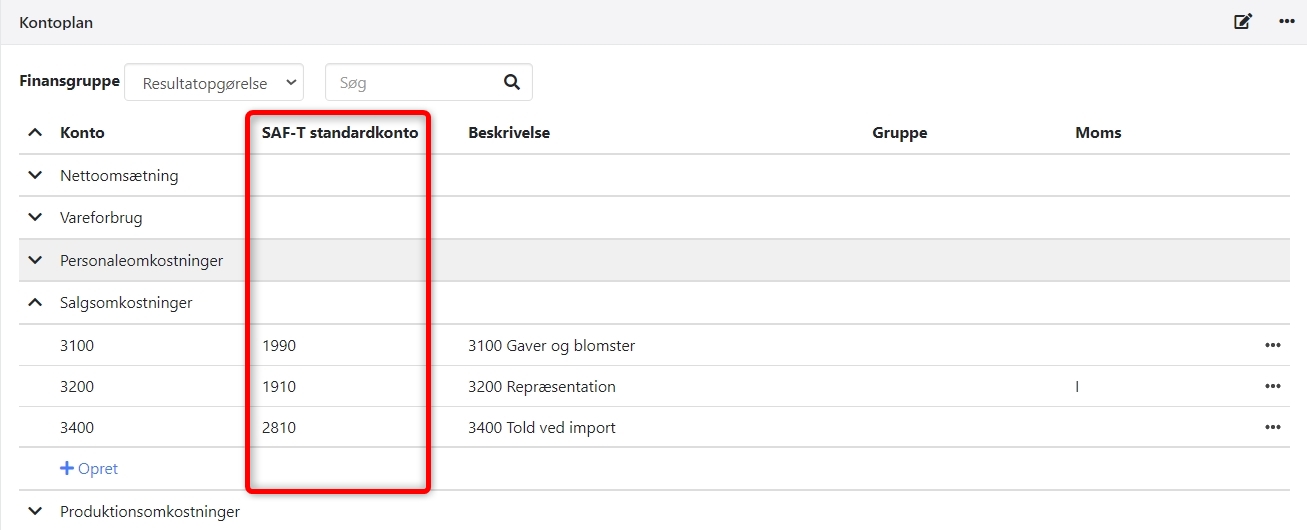
SAF-T Standard Account
The SAF-T Standard Account column is used to indicate account numbers according to the public standard chart of accounts. According to the new bookkeeping law, you must either:
- Rename your account numbers to follow the standard chart, or
- Fill in the SAF-T Standard Account column for all accounts
This must be done before reporting via Regnskab Basis.
➡️ Link to the public chart of accounts
Subgroups
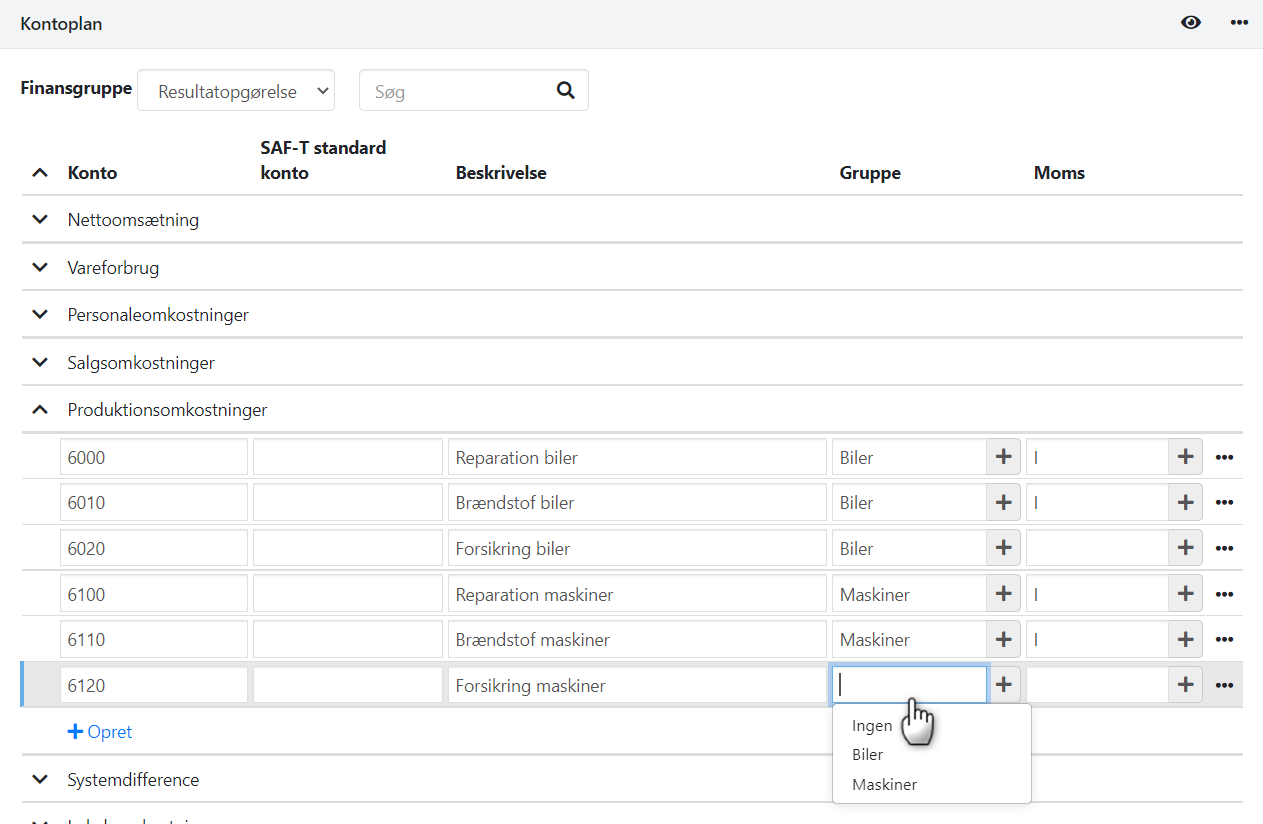
Subgroups are used to further divide accounts within the same main group. They appear as subtotals when printing a balance sheet.
You can create subgroups directly in the chart of accounts or via Setup > Ledger Setup > Ledger Account Groups.
Example: Under the main group Production Costs, you can create subgroups such as Vehicles and Machinery, which will appear as separate subtotals in the balance sheet.
Mandatory Account Numbers
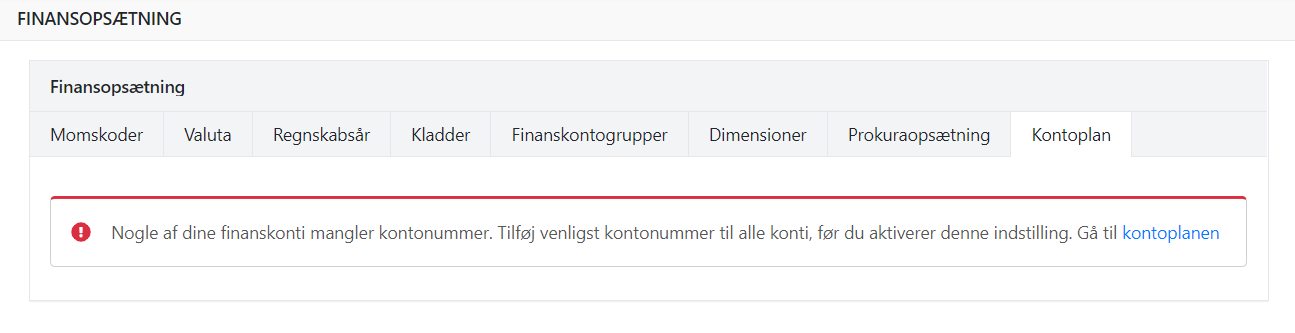
To ensure all accounts have account numbers, enable this requirement via Setup > Ledger Setup > Chart of Accounts.
If you see a warning, it means some accounts are missing numbers. Click the edit icon at the top right and review all groups under Income, Assets, and Liabilities, then activate the requirement once all accounts have numbers.
Printing and Export
At the bottom of the chart of accounts, you can download the chart as a CSV file.
Printouts of the Income Statement, Assets, and Liabilities can be found under Ledger > Ledger Reports.
Other Guides
➡️ Read about using dimensions
➡️ See the guide on using currencies
- Updated